Operational Downtime
Can your business afford to be offline for days or weeks while you recover?

Cyber criminals love outdated software. They know businesses delay upgrades and leave themselves vulnerable. Without security updates, Windows 10 will become a prime target for malware, ransomware, and data breaches – risks that could cost your business thousands or even put you out of action.
You could pay for Extended Security Updates (ESU). But with the cost stacking up to hundreds per device, it’s an expensive Band-Aid. And after three years, even that won’t be an option.
Here’s the good news: You can upgrade to Windows 11 for free if your devices are compatible. It’s packed with business-friendly tools and has been designed with productivity and security in mind.
But not every computer running Windows 10 is compatible with Windows 11. Now’s the time to check your devices.
If you leave it too late, you might find yourself scrambling to replace hardware, train staff, and migrate systems… causing unnecessary downtime and stress for you and your team.
But here’s the harsh reality: Running an unsupported operating system is a ticking time bomb for your business.
From the moment Microsoft stops providing updates, your systems will become more vulnerable. You could start having software issues, and your IT headaches will multiply.
Right now, Microsoft regularly releases security patches to fix newly discovered vulnerabilities in Windows 10. These updates help to protect your business from hackers, malware, and ransomware attacks.
On October 14, these security updates stop. And guess what? Cyber criminals know this too.
They actively look for businesses still using outdated systems, scanning for weaknesses they can exploit.
Without Microsoft’s ongoing security patches, Windows 10 will become an open door to cyber threats, and it won’t take long for attacks to ramp up.
Think it won’t happen to you?
SMBs are prime targets for cyber crime because they often lack dedicated IT teams. In fact, 43% of cyber attacks target small businesses – and many never recover from the financial and reputational damage.
Can your business afford to be offline for days or weeks while you recover?
Ransomware costs businesses an average of $4.88 million
Knowing who to notify (employees, customers, legal teams) and how to handle public messaging.
If sensitive data falls into the wrong hands, how confident will your customers feel about working with you?
Microsoft knows some businesses will drag their feet, so they’re offering Extended Security Updates (ESU)… but at a price:
Year 1: $61 per device
Year 2: $122 per device
Year 3: $244 per device
That’s $427 per device over three years just to keep getting security updates. And that’s without any new features, improvements, or technical support. If you miss any years, you’ll have to pay for them too.
Windows 11 isn’t just a security upgrade; it’s the new standard for business applications. Software developers will abandon Windows 10 in favor of Windows 11. And new applications will be designed to work with the new system. This means:
Your critical business apps may stop working properly
New features and updates might be unavailable to you
You’ll fall behind competitors using newer, more efficient software
Your hardware could be affected, too. Some printers, scanners, and peripherals may stop receiving driver updates, meaning they could become unreliable or stop working altogether.
Ever had an IT issue and needed to contact Microsoft for help? That option disappears on October 14.
If something breaks or a major issue crops up, you’ll be on your own. No more security updates, no more bug fixes, and no more official support from Microsoft.
At that point, every problem will take longer to fix and cost more money… if it can be fixed at all.
The sooner you check whether your computers are ready for the upgrade, the sooner you can plan your next steps – whether that’s upgrading existing devices or investing in new ones.
So, how can you find out what you need to do?
The fastest way to check if your computers can run Windows 11 is by using Microsoft’s PC Health Check tool. Here’s how:
Google “Windows PC Health Check” and download the tool directly from the official Microsoft website. Install and open it on each of your business devices. Click “Check now” to instantly find out if the device is compatible with Windows 11.
You’ll see a message like this: “This PC meets Windows 11 requirements.” This means you’re good to go. This computer is ready for the upgrade.
Or, you'll see something like this: “This PC doesn’t currently meet Windows 11 requirements.”
This could mean:
A small setting needs to be changed
You need a minor hardware upgrade (like more RAM or enabling TPM 2.0, a security chip)
The device is too old and needs replacing
Windows 11 has higher security and performance standards than Windows 10. To run it, a PC needs to meet the following spec:
Processor: 1GHz or faster, at least dual core, 64-bit processor.
RAM: 4GB or more (8GB+ is recommended for businesses).
Storage: At least 64GB of free space.
TPM 2.0: A security chip required for Windows 11.
Secure Boot: Enabled in your BIOS settings.
Graphics Card: Compatible with DirectX 12 or later.
Display: 9-inch screen or larger, with at least 720p resolution.
Most business computers from the last 3–4 years should be compatible, but if your device is older, it might not meet these standards.
If the PC Health Check tool says your device doesn’t meet the requirements, don’t give up just yet. Some issues are easy to fix and could save you thousands in hardware upgrades you might not need.
Common fixes:
Enable TPM 2.0: This is a security chip. Some PCs have this feature turned off by default. You can enable it in the BIOS settings (although please be very careful if you touch these. Better to ask an IT professional)
Enable Secure Boot: Also found in the BIOS, this security feature may just need turning on
Upgrade your RAM or storage: If your device is just short on memory or disk space, a small upgrade could fix the problem.
If your PCs can’t run Windows 11, what’s next? If your devices aren’t compatible with Windows 11 and can’t be upgraded, you have two choices:
Option 1: Stick with Windows 10 and pay for Extended Security Updates (not recommended. It’s not a long-term solution).
Option 2: Invest in future ready devices that can run Windows 11. If your hardware is more than 5 years old, replacing it now makes sense. Not only will you be ready for Windows 11, but your business will also benefit from improved performance and security.
Remember that ordering hardware and setting up systems can take weeks or even months, especially if supplies run low closer to the end-of-support deadline. If you need to upgrade your devices, start doing it now - don’t wait until the last minute.
One of the biggest improvements in Windows 11 is security. Cyber threats are becoming more sophisticated every year, and Windows 10 simply wasn’t built to handle the latest attacks.
Windows 11, on the other hand, includes advanced security measures that help protect your data from malware, ransomware, and other cyber threats.
One of the key security upgrades is hardware-based protection. Windows 11 requires devices to have the Trusted Platform Module (TPM) 2.0, which strengthens encryption and makes it much harder for attackers to steal sensitive data.
Encryption helps to protect your data by converting it into a secret code that only authorized people can read. So even if cyber criminals get access to your system, they can’t see the information.
Windows 11 also enables Secure Boot, a feature that prevents malicious software from loading when you start your computer.
Beyond these built-in protections, Windows 11 automatically applies stronger encryption to safeguard your files. It uses complex algorithms to scramble data, making it unreadable to anyone who doesn’t have the correct decryption key.
If your business handles customer information, financial records, or confidential files, these security features are going to become essential.
Upgrading your business to Windows 11 isn’t something you want to do in a last-minute panic. Put it off until October and you’ll find yourself scrambling to train staff, migrate systems, and possibly having to upgrade devices – all while trying to keep your business running as usual.
The smart move is to plan ahead. A smooth transition means less disruption, fewer headaches, and a more efficient workforce once the upgrade is complete.
The worst time to figure out your response is during an attack. A solid plan helps to make sure you have the right tools, knowledge, and procedures in place.
Start by assigning clear roles so everyone knows who takes charge, who handles communication, and who contacts IT support. And since human error is often the biggest risk, train employees to recognize threats.
Having secure, immutable backups is also essential. Immutable backups can’t be altered or deleted, even by ransomware, so you can restore your files without paying a ransom.

The faster you can detect an attack the sooner you can stop it – but cyber threats aren’t always obvious. Look out for unusual system activity, fake emails, slow performance, or unauthorized login attempts.
If you suspect an attack, gather as much information as possible on which systems have been affected, when the issue started, and whether any data has been stolen. A structured incident reporting process helps your team act quickly.
Once detected, the first priority is stopping the attack from spreading. If malware is found on any device, disconnect it from the network. If an email account is compromised, reset the password immediately.
Containment strategies vary, but acting out of panic (like permanently deleting a file or shutting down a server) can make recovery harder. Contain the problem first, then assess the damage.
After containing the attack, you need to remove the threat completely and begin restoring systems. This might involve running security scans, restoring backups, and fixing exploited vulnerabilities like outdated software or weak passwords.
If customer or financial data has been compromised, legal and regulatory requirements may apply. You may need to report breaches to authorities or notify affected customers.
Once the crisis is over, review what happened. What worked well? What didn’t? Where were the gaps?
Use the experience to update your security policies, improve employee training, and strengthen your backup strategy. Cyber threats are always evolving, so your defenses should too.
By regularly testing and refining your incident response plan, you’ll make sure your business is ready to act quickly and recover with minimal damage if the worst happens.
Run the PC Health Check tool on all business devices
Identify incompatible devices and decide whether to upgrade or replace them
Plan for hardware upgrades (RAM, storage, enabling TPM 2.0) if needed
If necessary, budget for new Windows 11-ready devices
Confirm cloud backups are up to date (or set this up if you don’t have a cloud backup)
Back up all important files, emails, and business documents
Make sure important software settings and licenses are saved
Create a system restore point in case you need to roll back
Check your essential business apps are compatible with Windows 11
Update software to the latest versions to avoid compatibility issues
Test printers, scanners, and other peripherals to make sure they’ll work
Contact software vendors for guidance if needed
Choose the best time to upgrade (avoid busy periods)
Plan to upgrade a test device first
Decide whether to upgrade other devices in phases or all at once
Make sure IT support is available during the transition
Communicate the plan to employees so they know what to expect
Upgrade the test device first before rolling out to the rest of the business
Monitor system performance after installation
Check that all files, software, and settings have transferred properly
Address any compatibility or performance issues immediately
Introduce employees to Windows 11’s new layout and Start menu
Show them how to use Snap Layouts for better multitasking
Explain the new built-in Microsoft Teams integration
Highlight security improvements and best practices
Enable automatic updates to receive the latest security patches
Review cyber security policies to make sure you’re following best practice
Set up regular system maintenance to optimize performance
But making the move takes time, planning, and expertise. From checking device compatibility and backing up data, to making sure all your software still works, training your team, and minimizing downtime… there’s a lot to manage. That’s where we come in.
We can handle everything from planning and installation, to troubleshooting and staff training, so you don’t have to worry about a thing. Don’t wait until the last minute. Putting off the upgrade could lead to disruption, security issues, or costly delays.
Have Questions? Let's Chat!
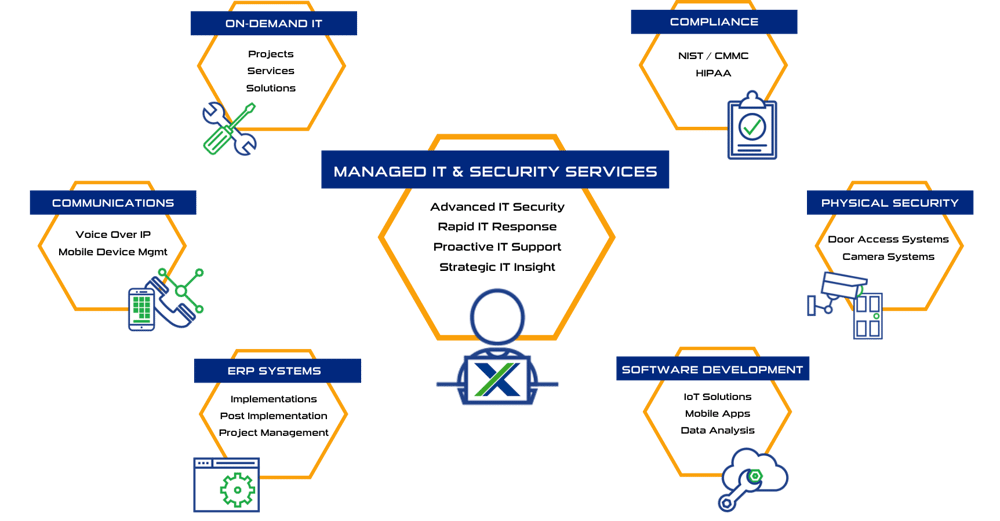
Some of Our Capabilities

Systems X provides IT solutions and strategic IT guidance with a human touch. Our purpose is to empower you to make better decisions with high-quality data and world-class service. Our creative thinking and purpose-driven solutions are the fundamental gears to guide the strategy that will connect your business with what’s next!!
Sales: (586) 884-7835
Service Desk: (586) 991-1050
Managed Services in Chesterfield, MI
50801 E. Russell Schmidt Blvd, Chesterfield, MI 48051
Managed IT Services in Detroit
400 Renaissance Center Suite 2600 - #2073, Detroit, MI 48243
Managed IT Services in Ann Arbor
2723 S State St Suite 150 - #1690, Ann Arbor, MI 48104
Managed IT Services in Cleveland
1300 Superior Ave #3413, Cleveland, OH 44114
DUNS No.: 79-009-7088
CAGE Code: 8YVR5
NAICS Codes: 541511, 541512, 541513, 541519, 517911, 611420
© 2025 Systems X Corporation