How To Get The Most From Microsoft Teams
It’s Monday morning. You’re trying to get a quick answer from someone in your business. But they’re working from home today…
Your email is sitting in their inbox, unread.
Meanwhile, you’re digging through old email threads to find the latest version of a file. Only to realize someone else has already updated it, and it’s sat in a folder on their laptop. You can’t access it. Frustrating, isn’t it?
That’s exactly the kind of chaos Microsoft Teams was built to fix. You’d be forgiven for thinking it’s just a video calling tool. Or maybe you’ve used it to send the odd message.
But here’s the truth: Microsoft Teams is much more than just a chat app or Zoom alternative.
It's a powerful communication tool and communication tool:
-
Save your business time
-
Help your people work better together, and
-
Maker everyday tasks simpler
Whether you have employees in the office, working remotely, or spread across different locations, Teams brings everyone together in one secure, easy-to-use place.

You can chat in real time, hold video meetings, share and edit files, manage tasks, and stay on top of everything. All without switching between different tools or drowning in emails.
And the best part? You don’t need to be tech-savvy to get the most out of it. Let's talk about it.
What Is Microsoft Teams? (& Why Does Your Business Need It?)
Microsoft Teams is your all-in-one hub for communication and teamwork. It’s part of Microsoft 365 and it’s designed to help your people stay connected and get things done.
Instead of juggling emails, phone calls, Zoom meetings, shared drives, and sticky notes, imagine having just one place to:
Hold
Video Meetings
Share & Edit Files Together
Keep Track Of
Tasks & Projects
That’s what Microsoft Teams does. And once you’ve got it set up, you’ll wonder how you ever worked without it.
From email overload to real-time conversations
In many businesses, email is still the go-to tool for everything. But it’s far from perfect. Long threads, missing attachments, delayed responses. It can be a slow and confusing way to communicate.
Teams takes a different approach. It’s built around real-time messaging. Like texting, but for work.
You can ask a quick question, share an update, or send a document instantly. Everyone sees the message straight away and can reply in seconds. It speeds things up and cuts out a lot of unnecessary emails.
Everything in one place
One of the biggest strengths of Microsoft Teams is that it brings all your communication and files together in one secure place. Need to hop on a quick video call? You can do it directly inside Teams.
Want to work on a Word document with a colleague? Open it right in the chat and edit it at the same time. No need to email versions back and forth. Trying to remember where that important file was saved? If it was shared in Teams, it’s right there in the conversation history.
Teams also links up with tools you might already use, like Outlook, Excel, and PowerPoint. Everything feels familiar, and you don’t need to learn a whole new system.
Globally, 80% of hacking-related breaches are caused by stolen or reused passwords. That means the biggest threat to your business could be something as simple as one weak password.
Teams, Channels, & Chats: What's The Difference?
When you first open Microsoft Teams, it can feel a bit overwhelming.
You’re faced with something called “Teams”, then “Channels”, and there’s also “Chat”. But what’s the difference? And when should you use each one?
Understanding Teams
Think of a “Team” in Microsoft Teams as a group space for people who are working together regularly. That might be your whole business, or just a specific department like sales or finance.
Each team has its own digital workspace where people can talk, share files, hold meetings, and stay up to date.
For example, you might have one team for the whole company, and then smaller, more focused teams for specific projects or departments. The idea is to give people a shared space where everything related to their work is easy to find and talk about.
What Channels Are For
Inside each team, you can create different “Channels”. These are like topic areas that keep discussions organized. So instead of having one long, messy thread of conversation, you split things up by subject.
Let’s say you’ve created a team for your marketing department. Within that, you might have channels for things like social media, events, or email campaigns. That way, when someone posts an update or a question, it’s in the right place. And everyone can find it again later without hunting through unrelated messages.
Channels also make collaboration easier. Each one has its own conversation area, file storage, and even its own meeting space. Everything stays tidy and focused.
What Chat Fits In
Chat works a bit differently. This is more like sending a text message or a direct message on social media. It’s for those quick, informal conversations. Maybe a one-to-one with a colleague, or a small group chat with two or three people.
You might use chat to ask a quick question, check in on a task, or share something that doesn’t need to go into a formal team channel.
The big difference is that chat conversations are private. Only the people in that chat can see them.
So, if it’s something important that others might need to refer to, like a file or a group decision, it’s better to post it in a channel where everyone can see it.
How It All Works Together
Let’s imagine your business is launching a new product. You could set up a dedicated team for the project, then create separate channels for planning, marketing, and logistics.
This gives everyone a clear place to work and keeps the conversation flowing in an organized way.
But if you just need to quickly check in with someone about an idea, you might send them a private chat instead.
Meetings That Work
Let’s be honest, business meetings don’t always go smoothly.
Sometimes people can’t find the right link. Someone’s camera doesn’t work. Files are missing. And by the time everyone’s joined and figured out what’s going on, half the meeting time has already been wasted.
Microsoft Teams takes away a lot of that pain. It’s designed to make meetings easier to organize, simpler to join, and more productive overall. Whether you’re meeting one-to-one or with a group spread across different locations, it gives you everything you need in one place.
With Teams, you can schedule a meeting straight from your Outlook calendar, or directly within the Teams app itself. When it’s time to join, you just click the link. That’s it. No special codes, no extra apps, no last-minute scrambles.
If someone’s running late or can’t make it, they can catch up later. Teams gives you the option to record meetings (with permission), and it can even generate a written transcript. That way, no one misses out on key points, and you can go back and check exactly what was said.
During a Teams meeting, you’re not just limited to talking. You can share your screen, show a PowerPoint, open a shared document, or even work on a file together in real time. It turns a basic video call into something much more useful.
Let’s say you’re reviewing a proposal with a client. Instead of emailing them a PDF and hoping they’ve read it, you can share your screen and walk them through it live. Or if your people are brainstorming ideas, you can open a shared document and start writing together.
It’s all smooth, fast, and in one window. You’re not constantly switching between tabs or tools.
Another benefit is how Teams keeps all the meeting details tidy and accessible. You can add an agenda to your invite, take notes during the meeting, assign follow-up actions, and store everything in the same space where the meeting took place.
And because meetings are linked to specific teams and channels, the right people are always included. Everyone sees the context, can add comments before the meeting, and can review the results afterwards. All without needing a separate email chain.
The result? Meetings that run smoothly, stay on track, and don’t eat into everyone’s day. You spend less time setting them up, and more time getting things done.
Smarter File Sharing & Collaboration
If you’ve ever emailed a file to someone… waited for them to make changes… and then tried to figure out which version is the most up to date,
you’ll know how frustrating it can be. It’s a common headache in many businesses.
Microsoft Teams offers a much smarter way to share and work on files together. Without all the confusion.
Work together, even when you're apart
One of the most powerful features in Teams is real-time editing. That means two, three, even ten people can open a Word document, Excel spreadsheet, or PowerPoint presentation at the same time and work on it together.
When you share a file everyone opens the same version. Not a copy. Not a separate attachment. The actual file, stored securely in the cloud and always up to date.
You see changes as they happen. You can leave comments. You can discuss edits in the chat beside the file. It’s like sitting next to each other in the same room, even if you’re miles apart.
That also means no more endless versions with names like “Final_Final2_ReallyFinal.docx.” You can see who last edited the file, when they did it, and even go back to earlier versions if needed.
And because the file stays in Teams (and is backed by Microsoft’s cloud service, OneDrive), it won’t get lost in someone’s inbox or desktop folders. It’s always there when you need it.
Files Stay Where The Conversation Happen
Let’s say someone shares a new pricing spreadsheet in a chat. You open it, review it, and send back a few thoughts. That file and the full conversation are now saved in the chat thread, ready to come back to later.
Or maybe your sales department is working in a dedicated Teams channel. They can share files related to leads, quotes, and proposals right there. No more digging through emails or hunting through shared drives. Everything stays connected.
Easy To Use, Easy To Trust
If you’re worried this all sounds too technical, don’t be. Opening and editing files in Teams feels just like using Word or Excel. Because it is.
You can edit directly in Teams or click a button to open the file in your desktop app if you prefer.
And because everything is saved automatically, there’s no need to hit “Save” or worry about losing your work if your laptop battery dies. Great!
Boosting Productivity With Built-In Apps
Microsoft Teams isn’t just about messaging and meetings. It also includes a bunch of helpful tools that can save time, keep work moving, and make your business run more smoothly. All without needing to switch between lots of different apps.
These tools are built right into Teams. Once you know where to find them, they’re easy to use and incredibly handy.
Let’s start with something every business needs: Keeping track of what needs doing.
In Teams, you’ll find a simple task management tool called Planner. It’s a way to create to-do lists for yourself or for your people.
You can assign tasks to people, add deadlines, tick things off as they get done, and see progress at a glance. It’s perfect for managing small projects, shared workloads, or even just your own daily list of jobs.
And because it’s part of Teams, you can talk about the task and work on it in the same place.
Need to get something signed off? A price, a quote, some vacation time? Instead of sending emails back and forth, you can use the Approvals app inside Teams.
It lets you create a quick approval request, send it to the right person, and get a clear yes or no, without delays or confusion.
It keeps a record too, so you’ve always got a paper trail if you need to refer back to it later.
Sometimes you just need a quick answer from people. Should we do A or B? What time suits everyone for a meeting?
With Forms and Polls inside Teams, you can ask a question and see the results in real time. It’s much faster than chasing replies by email, and everyone sees the outcome straight away.
This is great for getting feedback, making group decisions, or even checking how your people are feeling about something new.
And one of the best things about Teams is how well it plays with others.
You can bring in tools your business is already using. Like OneNote for notes, SharePoint for document storage, or even third-party apps like Trello, Zoom, or HubSpot.
These tools can be added as tabs inside a team or channel, so your staff don’t have to keep switching between different websites or systems.
It keeps everything connected and saves time, especially when you’re juggling a lot of different tools.
These built-in apps help you move faster, stay organized, and reduce the admin that can slow down your day. Best of all, they’re easy to learn and built to support the way real businesses work.u need to refer back to it later.

Your First 30 Days With Teams
Now that you’ve got a clear picture of what Microsoft Teams can do, you might be wondering: “Where do I start?”
You don’t have to do everything at once. In fact, the best approach is to start small, build confidence, and grow from there.
Here’s a simple roadmap for your first 30 days with Teams, to help your business get set up and start seeing the benefits quickly.
Week 1: Get Set Up & Explore
Start by making sure everyone has access to Microsoft Teams through their Microsoft 365 account. If you’re unsure, an IT support partner (like us) can help you with that.
Next, set up one or two core teams. Perhaps one for the whole company and another for a key department like sales or operations. Inside each team, create a few basic channels for common topics like General updates, Projects, or Clients.
Then, explore. Send a few test messages. Upload a file. Try starting a chat with a colleague. This first week is about getting familiar with how everything works.
Week 2: Start Using It Day-To-Day
Once people are comfortable, start adding features that help things run more smoothly.
You might add a task list using Planner, or create an approvals process using the Approvals app. If you use other tools like Trello or SharePoint, try adding them as tabs inside your channels.
These little changes can have a big impact on productivity.
Now’s also a good time to review your notifications. Make sure everyone knows how to manage them, so they’re not overwhelmed.
Week 3: Add Useful Tools
Encourage your people to use Teams for normal daily communication instead of email. Post updates in channels. Share files there. Use the chat function for quick questions.
You might also schedule a couple of meetings in Teams to see how smooth it feels. Try screen sharing or live document editing if you’re feeling confident.
You don’t need to move your entire workflow in one go. But the more you use Teams, the more natural it will become.
Week 4: Review & Improve
By the end of the month, you should have a good idea of what’s working. And what could be better.
Talk to your people. Ask what they like, what’s confusing, and what would help them use it more. Tidy up any unused channels. Pin important content. Add a bit of structure where it’s needed.
The key is to keep improving as you go. Teams isn’t something you “finish”, it’s a tool that grows with your business.
Getting started with Microsoft Teams doesn’t have to be difficult. With a bit of planning and a little patience, it can quickly become one of the most valuable tools in your business.
It saves time. It cuts down on confusion. It helps your people work better together. Whether they’re across the room or across the country.
If you’re ready to see how Teams can make improvements in your business, we can help you get started. Get in touch.
Have Questions? Let's Chat!
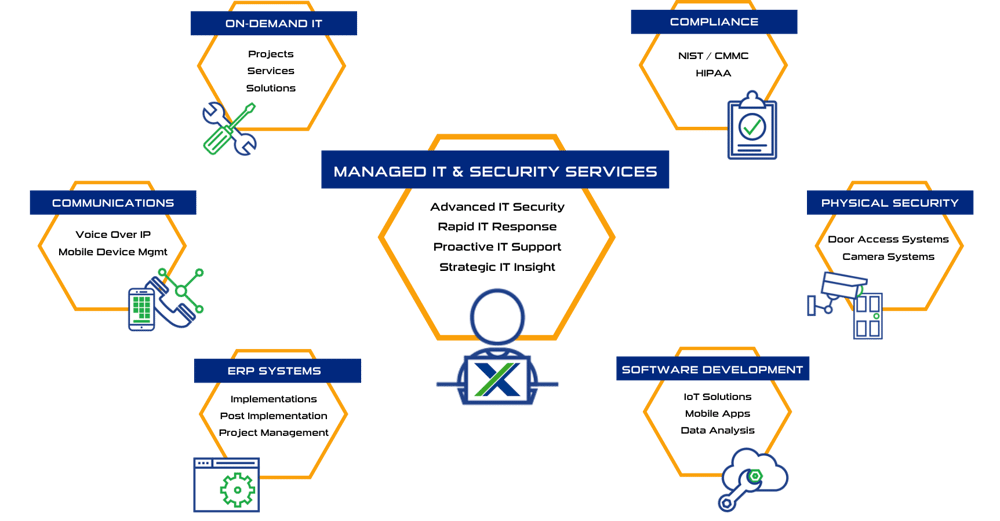
Some of Our Capabilities

Systems X provides IT solutions and strategic IT guidance with a human touch. Our purpose is to empower you to make better decisions with high-quality data and world-class service. Our creative thinking and purpose-driven solutions are the fundamental gears to guide the strategy that will connect your business with what’s next!!
Sales: (586) 884-7835
Service Desk: (586) 991-1050
Managed Services in Chesterfield, MI
50801 E. Russell Schmidt Blvd, Chesterfield, MI 48051
Managed IT Services in Detroit
400 Renaissance Center Suite 2600 - #2073, Detroit, MI 48243
Managed IT Services in Ann Arbor
2723 S State St Suite 150 - #1690, Ann Arbor, MI 48104
Managed IT Services in Cleveland
1300 Superior Ave #3413, Cleveland, OH 44114
DUNS No.: 79-009-7088
CAGE Code: 8YVR5
NAICS Codes: 541511, 541512, 541513, 541519, 517911, 611420
© 2025 Systems X Corporation